
Showing posts with label WCS 7. Show all posts
Showing posts with label WCS 7. Show all posts

Create View
- In WCD IDE go to Stores\WebContent\Madisons and create a new folder Test
- Right click on the folder Test and click Files. In the wizard name your jsp TestView.jsp
- In TestView.jsp add below code:
- Adding Struts entry
- under Actions Mappings click Add and rename default value to /testView. Also enter com.ibm.commerce.struts.BaseAction in the Type text box and save.
- Go to Global Forwards tab
- click Add button. and change default value to testView/10051 (where 10051 is the STOREENT_ID of Madisons store. You can fins this by running the query select STOREENT_ID from STOREENT where IDENTIFIER = 'Madisons'; )
- Under Forward Attributes section add the path as /Test/TestView.jsp
- Create and run access policies (xml for view is given below)
- Start server
- Test you view using URL: http://localhost/webapp/wcs/stores/servlet/testView?storeid=10051
My test view
Reff: http://publib.boulder.ibm.com/infocenter/wchelp/v7r0m0/topic/com.ibm.commerce.developer.tutorial.doc/tutorial/ttd12.htm
Writing you own WCS controller command
Steps involved in writing you own controller command are
- Writing controller command interface
- As this is your first command it is best if you stop your server
- Open WCS developer and go to Java EE view
- In the Enterprise Explorer view open WebSphereCommerceServerExtensionsLogic and right click on src folder and create a new interface (new > Interface)
- In the inftrace creation wizad fill in below details and click finsh:
- Name: HelloWcsCmd
- Package: com.developernotes.wcs.commands
- Extended interface: com.ibm.commerce.command.ControllerCommand (Click on add button and search for ControllerCommand)
- In the interface class HelloWcsCmd.java enter below code:
- Writing controller command implementation class.
- In the Enterprise Explorer view open WebSphereCommerceServerExtensionsLogic and right click on src folder and create a new java class (new > Class)
- In the class creation wizad fill in below details and click finish:
- Name: HelloWcsCmdImpl
- Package: com.developernotes.wcs.commands
- SuperClass: com.ibm.commerce.command.ControllerCommandImpl (Click browse and search for ControllerCommandImpl)
- Interface: com.developernotes.wcs.commands.HelloWcsCmd (click add search for you interface and add)
- In the implementation class HelloWcsCmdImpl.java enter below code:
- Adding Struts entry
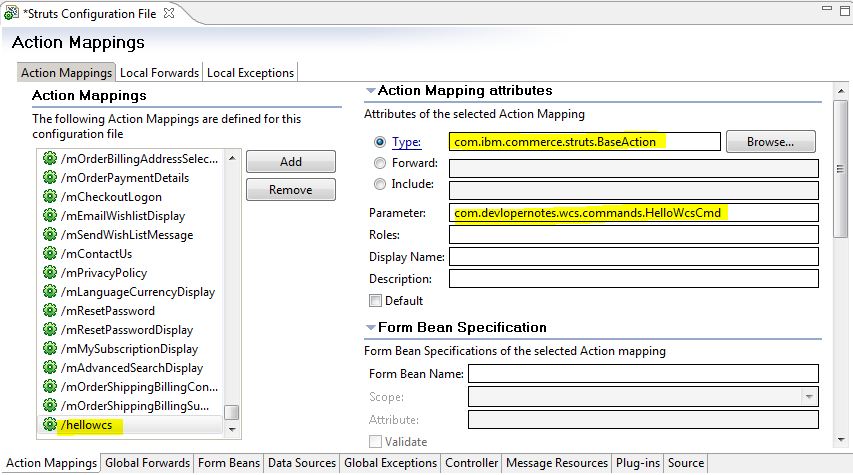
- Open struts-config-ext.xml in Stores web-project in Struts Configuration File Editor
- Go to Action Mappings tab in Struts Configuration File Editor
- Under Actions Mappings section, click Add button. Delete the default path value(default is /action1) and enter /hellowcs for the path value.
- Under Action Mapping attributes, enter com.ibm.commerce.struts.BaseAction in the Type attribute and in Parameter attribute enter com.test.wcs.commands.HelloWcsCmd . The parameter attribute contains interface name of the logic/java class that we need to be executed.
- Save struts-config-ext.xml
- Restart your server so that the status changes take effect [Apply Struts changes with out server restart]
- Adding controller command in the command registry (optional)
- You don't need to do this this to make your command work. Command registry is used when you need to specify which implementation the interface class/command should call for a particular store.
- Setting up access control for a controller command
- Create a file HelloWcsCmdACPolicy.xml enter below xml in this file.
- Place the file in xml\policies\xml directory which you can find with in you WebSphere Commerce Developer installation directory.
- Run acplod [ Acpload command ]

// default implement class
  static final String defaultCommandClassName =
   "com.developernotes.wcs.commands.HelloWcsCmdImpl";

@Override
public void performExecute() throws ECException {
 super.performExecute();
 System.out.println("Hello WCS");
}
Reference : http://publib.boulder.ibm.com/infocenter/wchelp/v7r0m0/index.jsp
Acpload command
- To run the access control policies you need to use acpload.bat in \bin directory with in you WebSphere Commerce Developer installation directory.
- To run acpload if you are using default WCD (Derby data base)
- Open command prompt and go to bin directory
- Run acpload ACPolicyfilename.xml
- To run acpload if you are using DB2 or Oracle
- Open command prompt and go to bin directory
- Run acpload <your database name> <your Db user name> <your Db user password> <ACPolicyfilename.xml > <DB schema name (normally it will be same as your database user name)>
- check the acpload.logs and make sure there is no errors.

Applying Struts changes with out server restart
If you want your Struts changes with out restarting your server
- Go to Administration Console → select Site radio button.
- Go to Configuration → Registry. There select check box for the Struts Configuration registry component and click Update.
- Click Refresh to reload the Registry wait till status column shows Updated.
Now your Struts changes are applied
Subscribe to:
Posts (Atom)